

How to revert to the Windows 10 context menu
One command and a restart brings back the right-click menu your team already knows.
Last updated: April 6, 2026
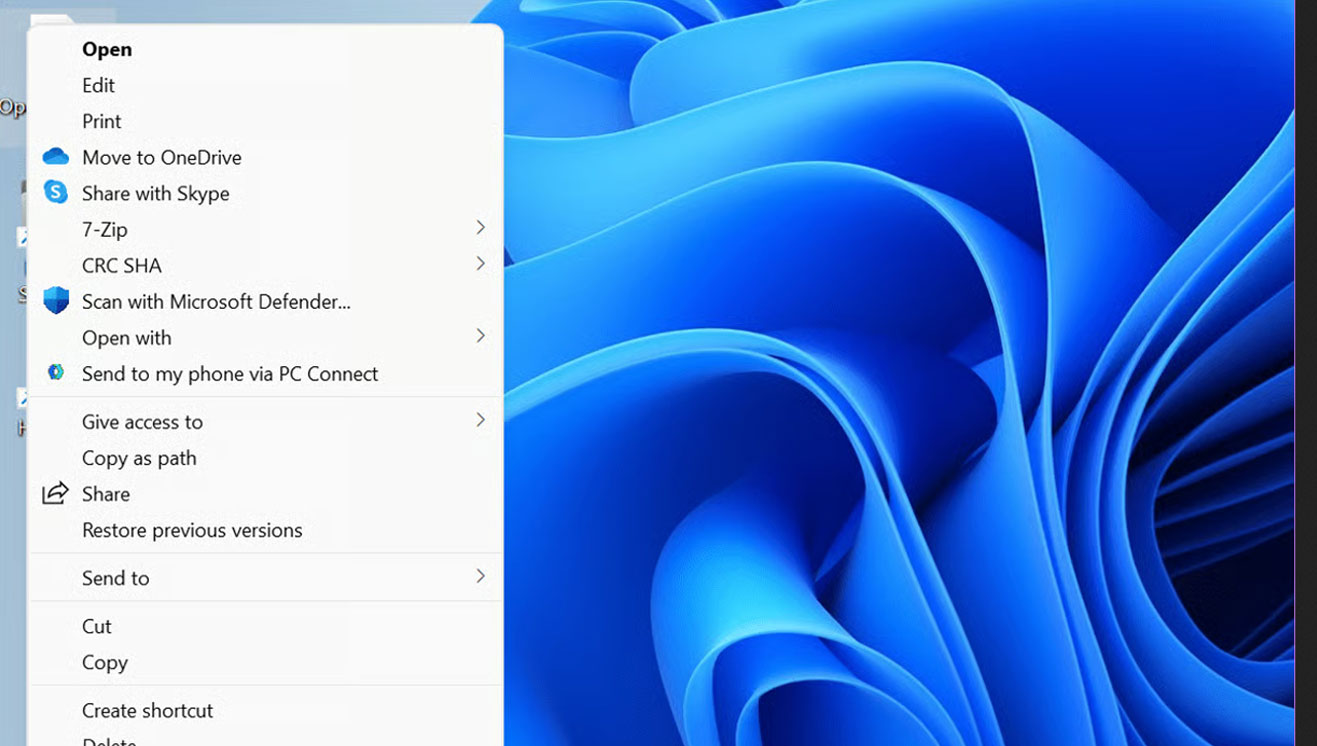
The Windows 10 context menu was built for efficiency. Copy, paste, rename, and properties were right where you expected them with no extra clicks. Windows 11 changed that with a simplified menu that requires an extra click to reach most of the options your team uses every day. The frustration is widespread and well-documented. The fix is a single registry command that takes about 30 seconds and works on Windows 11 through the current 24H2 release.
Why the Windows 11 context menu frustrates business users
Windows 11's updated context menu added visual clutter and rearranged options that most users do not need. Sub-menus intended to simplify things instead added extra navigation layers, forcing users to click through more levels to reach common functions. For businesses where staff use the right-click menu dozens of times a day, that friction adds up. The new design also introduced compatibility problems with some third-party software integrations that worked cleanly in Windows 10.
How to revert to the Windows 10 context menu
Press the Windows key, type cmd, right-click on Command Prompt in the results, and select Run as administrator. Click Yes on the User Account Control prompt. Paste the following command and press Enter:
Restart your computer. When it comes back up, right-click any file or folder — your classic Windows 10 context menu will be restored. That is the entire fix.
How to undo it and return to the Windows 11 menu
If you ever want to go back to the Windows 11 context menu, open Command Prompt as administrator and run this command, then restart:
Why this works and what it actually changes
Deploying this change across multiple computers
Running this command on one machine takes 30 seconds. Running it across ten, twenty, or fifty machines individually is a different problem. In a managed Windows environment, this registry change can be deployed using Group Policy preferences, a logon script, or through a remote monitoring and management platform without visiting a single desk. If your business standardized on Windows 11 and the context menu change is affecting everyone's workflow, a centralized deployment is the right approach — your team gets the fix simultaneously and it can be reapplied automatically after major Windows updates without any manual intervention.
Frequently asked questions
How do I get the old right-click menu back in Windows 11?
Open Command Prompt as administrator, paste reg add "HKCU\Software\Classes\CLSID\{86ca1aa0-34aa-4e8b-a509-50c905bae2a2}\InprocServer32" /f /ve and press Enter, then restart your computer. The classic Windows 10 context menu will be restored.
Is it safe to edit the registry to restore the Windows 10 context menu?
Yes. This change is limited to the current user's registry hive and only affects which context menu shell Windows loads. It does not modify system files, remove Windows 11 features, or affect system stability. If anything goes wrong, deleting the same registry key and restarting returns everything to the default state.
Will a Windows 11 update undo the context menu fix?
Major Windows 11 feature updates can occasionally reset this registry entry and restore the new context menu. If your right-click menu reverts after a Windows update, run the command again and restart. The fix takes under a minute to reapply.
How do I switch back to the Windows 11 context menu?
Open Command Prompt as administrator and run reg delete "HKCU\Software\Classes\CLSID\{86ca1aa0-34aa-4e8b-a509-50c905bae2a2}" /f then restart your computer. Windows 11 will load the default context menu on the next boot.
Can I push this registry change to all computers in my office?
Yes. The registry change can be deployed to multiple computers using Group Policy, a logon script, or a remote monitoring and management platform. A managed IT provider can push this setting across your entire office fleet without visiting each desk individually and can configure it to reapply automatically after major Windows updates.
Does this fix work on Windows 11 24H2?
Yes. The registry fix continues to work on Windows 11 24H2, released in late 2024, and through current Windows 11 updates. Microsoft has not blocked this method in any Windows 11 release to date, though major feature updates can occasionally reset the registry key and require reapplying the command.
We deploy settings and configurations remotely across your entire team without a single desk visit. See how managed IT works.